Shop System
The shop lets members spend their credits on Discord roles you configure. It's the primary way members use their credits, so a well-stocked shop is key to keeping your economy healthy.
Limits
- Free servers: up to 20 shop items
- Premium servers: up to 50 shop items
Managing the Shop
/shop manage   — open the interactive shop manager (mod/admin only)
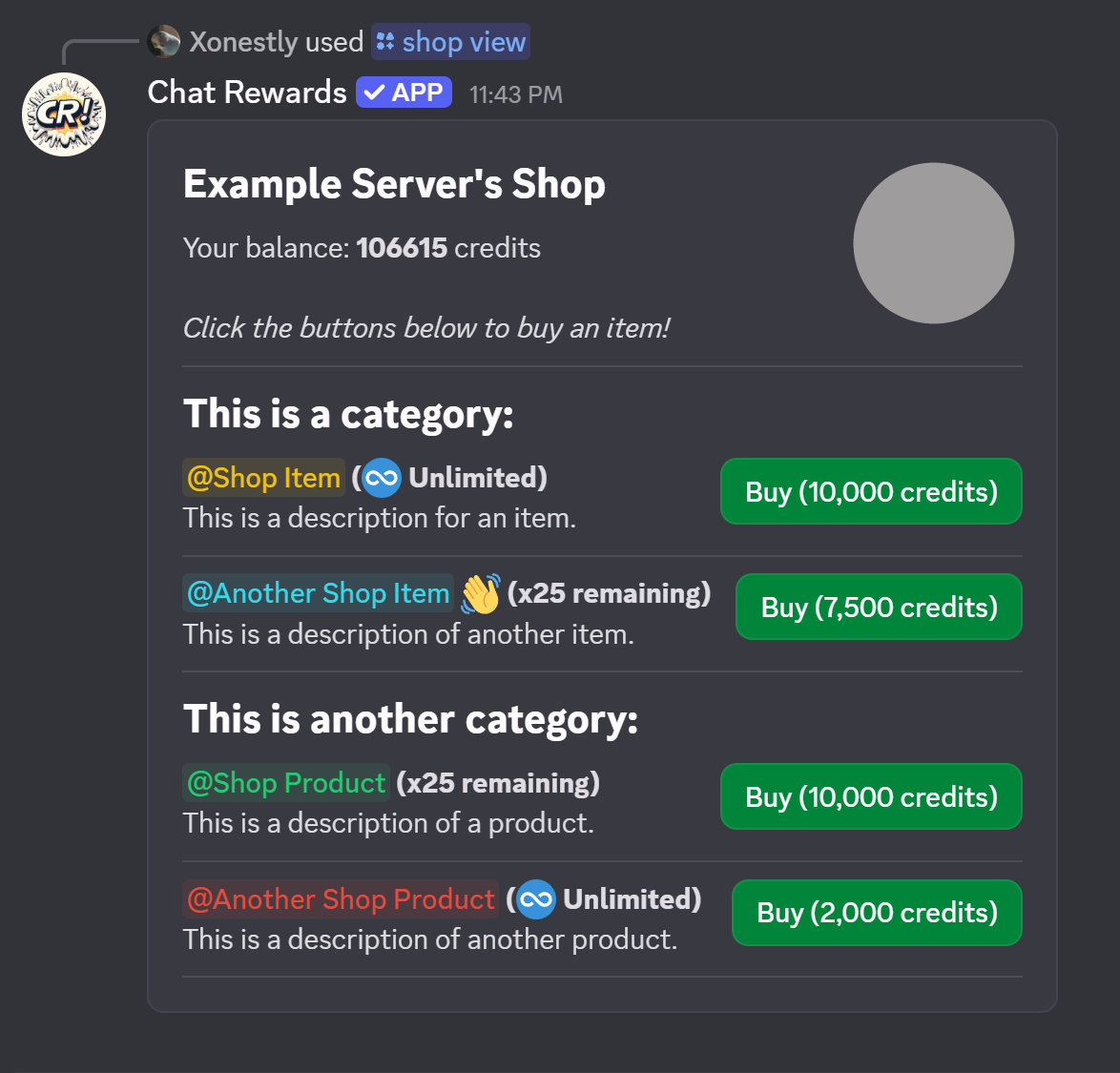
/shop view     — view the shop as members see it (anyone)
In /shop manage you can add, edit, and delete items.
Adding an Item
Click Add Item in the shop manager and fill in:
Role (required) — The Discord role the member receives on purchase.
The bot must have Manage Roles permission, and its role must be above the sold role in the server's role list. Go to Server Settings → Roles and drag the Chat Rewards bot role above any roles you're selling.
Price (required) — How many credits the item costs.
Stock (required) — How many times the item can be purchased. Set to infinite for unlimited purchases.
After filling in the basics and clicking Submit, the item appears in the shop. You can then click Edit on the item to add optional fields:
Category (optional) — A label to group items in /shop view (e.g., "VIP", "Cosmetics", "Event"). Items with the same category are grouped together. Category names have a character limit: 25 characters (free) or 50 characters (premium).
Description (optional) — A short description shown next to the item. Use this to explain perks or give redemption instructions for external rewards. 50 characters (free) or 100 characters (premium).
Emoji (optional) — An emoji shown next to the item name. Standard Unicode emoji (like 💎) work on all plans. Custom and animated Discord server emojis require Premium.
Run /shop view after adding items to see exactly how your shop looks to members.
How Members Purchase
Members run /shop view and click the Buy button next to an item. The role is assigned automatically and their credit balance is deducted.
Refunds: Members can refund a purchase within 60 seconds if it was accidental. The role is removed and credits are returned. After 60 seconds, sales are final.
Shop Item Pricing Tips
Match prices to your server's earning rate. Check the leaderboard to see how quickly members accumulate credits, then price accordingly:
- Starter/cosmetic roles: 1,000–5,000 credits
- Mid-tier roles: 10,000–50,000 credits
- Premium/exclusive roles: 100,000+ credits
Tiered progression (Bronze → Silver → Gold → Platinum) works well — members have clear goals to work toward.
Time-Limited Sales (Premium)
Premium servers can run sales on shop items, discounting prices for a set period. Configure via /shop manage. See Premium Features.
Troubleshooting
Bot can't assign the role:
- Bot has Manage Roles permission
- Bot's role is above the shop role in the role list
- The role still exists in the server
Members can't see items:
- Members should use
/shop view, not/shop manage - Confirm items were saved correctly